User Guide
This page provides step-by-step guides for checking your CTF data, as well as some useful tips.
How to Open a CTF
Checking your CTF data involves three simple steps:
Step 1) Open the menu and select "Check My CTF Data "
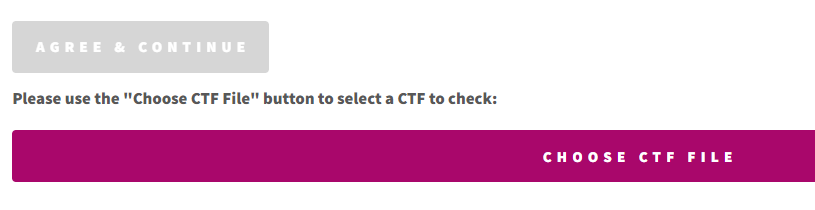
Step 2) After reading the Disclaimer, click the button labelled "Agree & Continue", then click the button labelled "Choose CTF File"
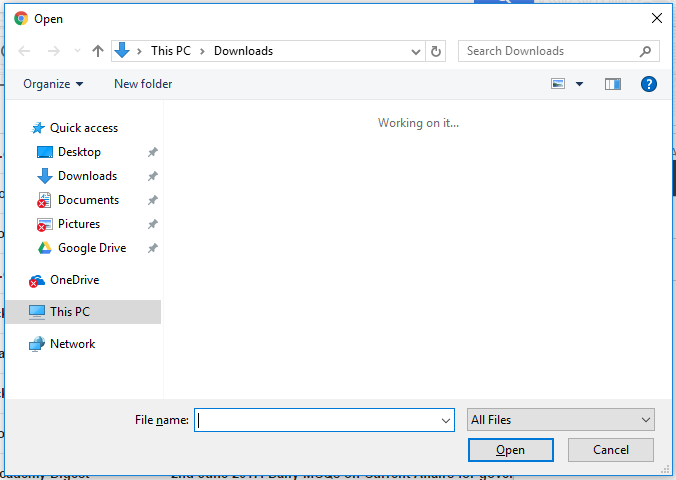
Step 3) Navigate to the location of your CTF, click on the file to select it, and click the button labelled "Open".
Charts, Table & Appendix Sections
The CTF is now presented on screen, and is divided into sections.
The first section is labelled "Charts", and contains a list of interactive graphs.
Clicking on the arrows situated on the left and right of the chart allow you to view the next or previous chart in the list.
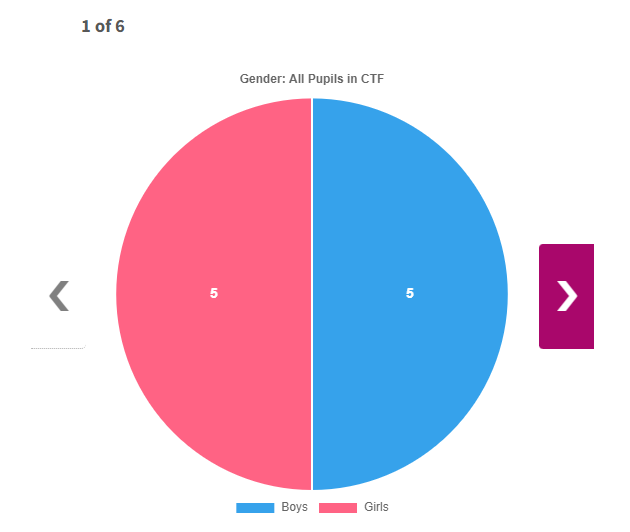
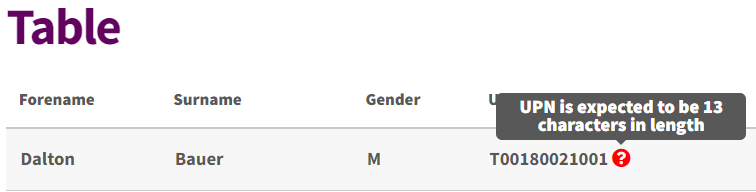
The next section is labelled "Table", and it contains the names, gender, UPN, and results for each pupil.
A query icon will appear next to any data which requires your attention. Hover the mouse cursor over the query icon to reveal more information.
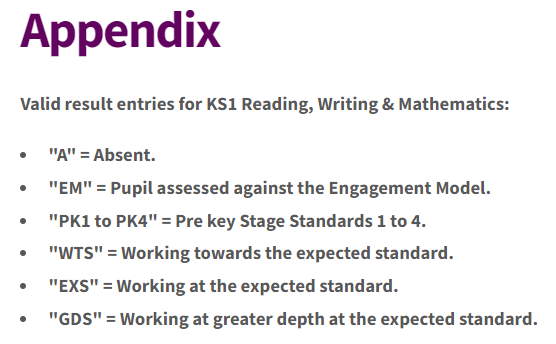
The final section is labelled "Appendix". This section contains additional useful information, and links to Department for Education sources.
Tip #1: Chart Filtering
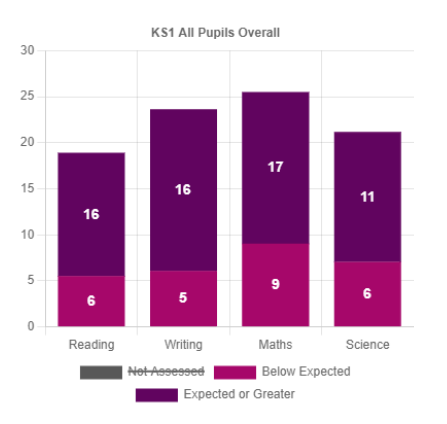
Charts can be filtered to show or hide data by clicking on the coloured legend below each chart.
In the example below, all pupils who were not assessed have been hidden from the chart by clicking on the grey legend item labelled "Not Assessed". Each click on a legend item will toggle between showing or hiding the data.
Tip #2: Save a Chart as a Picture
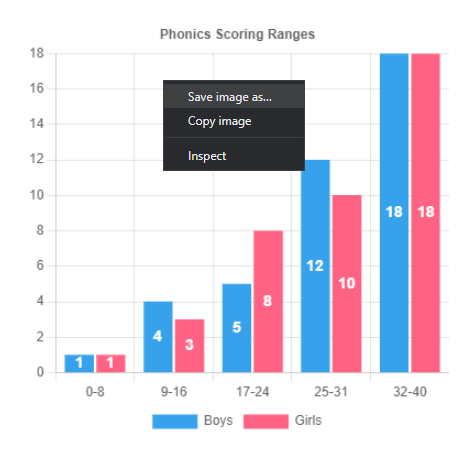
To save a chart as an image, right-click on the chart and choose "Save image as..."